Step by step
How to play Fabi Play
Follow the pictures, one step at a time. A grown-up helps with the first few.
-
Step 1: What you need
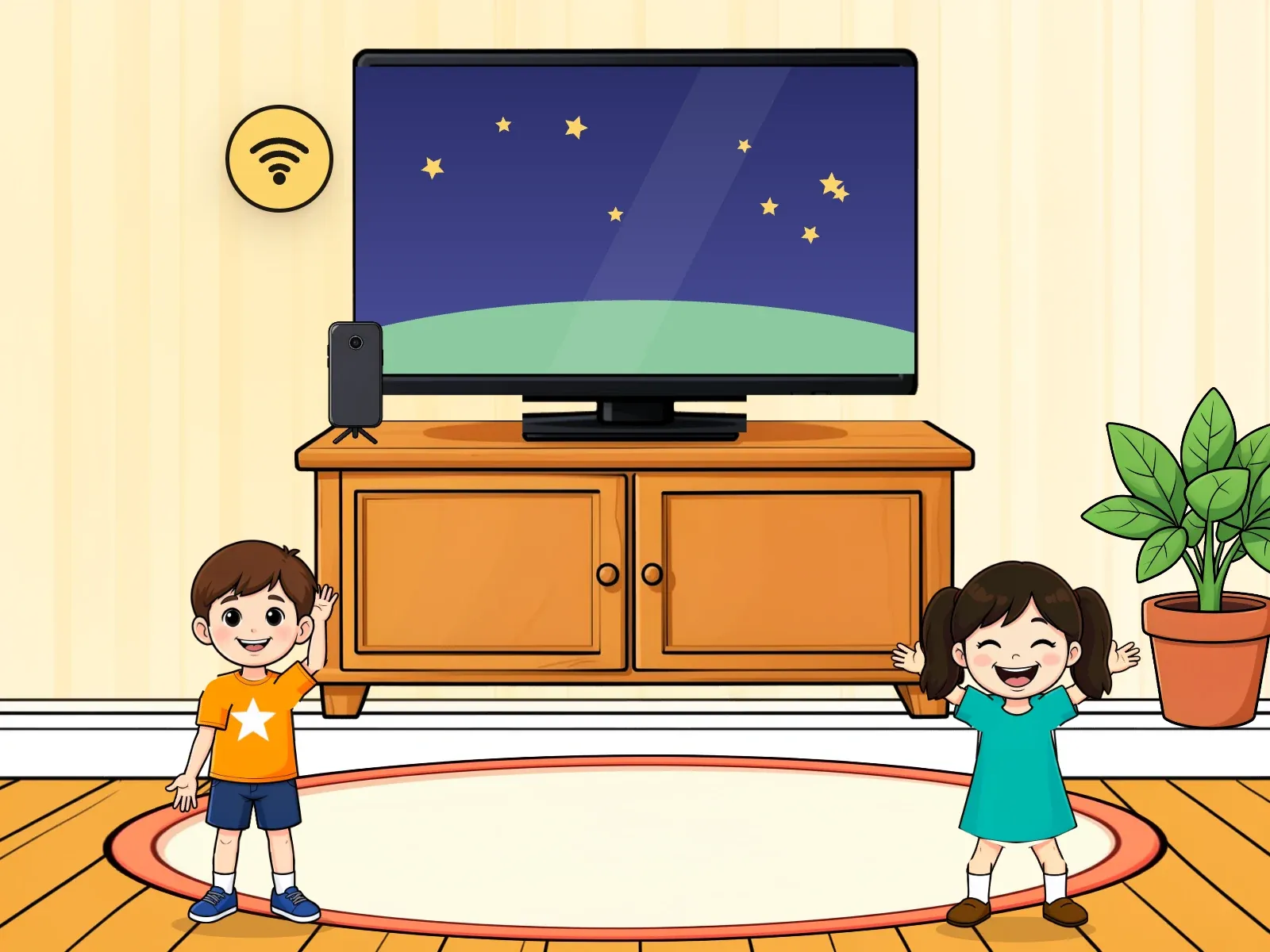
A TV and a phone, both on the same Wi-Fi. And some room to jump!
For grown-ups: Fire TV has the Fabi Play app. Any other TV works with its web browser, and so does a computer connected to the TV. Step 2 shows you how.
-
Step 2: Open Fabi Play on the TV
With the Fabi Play app
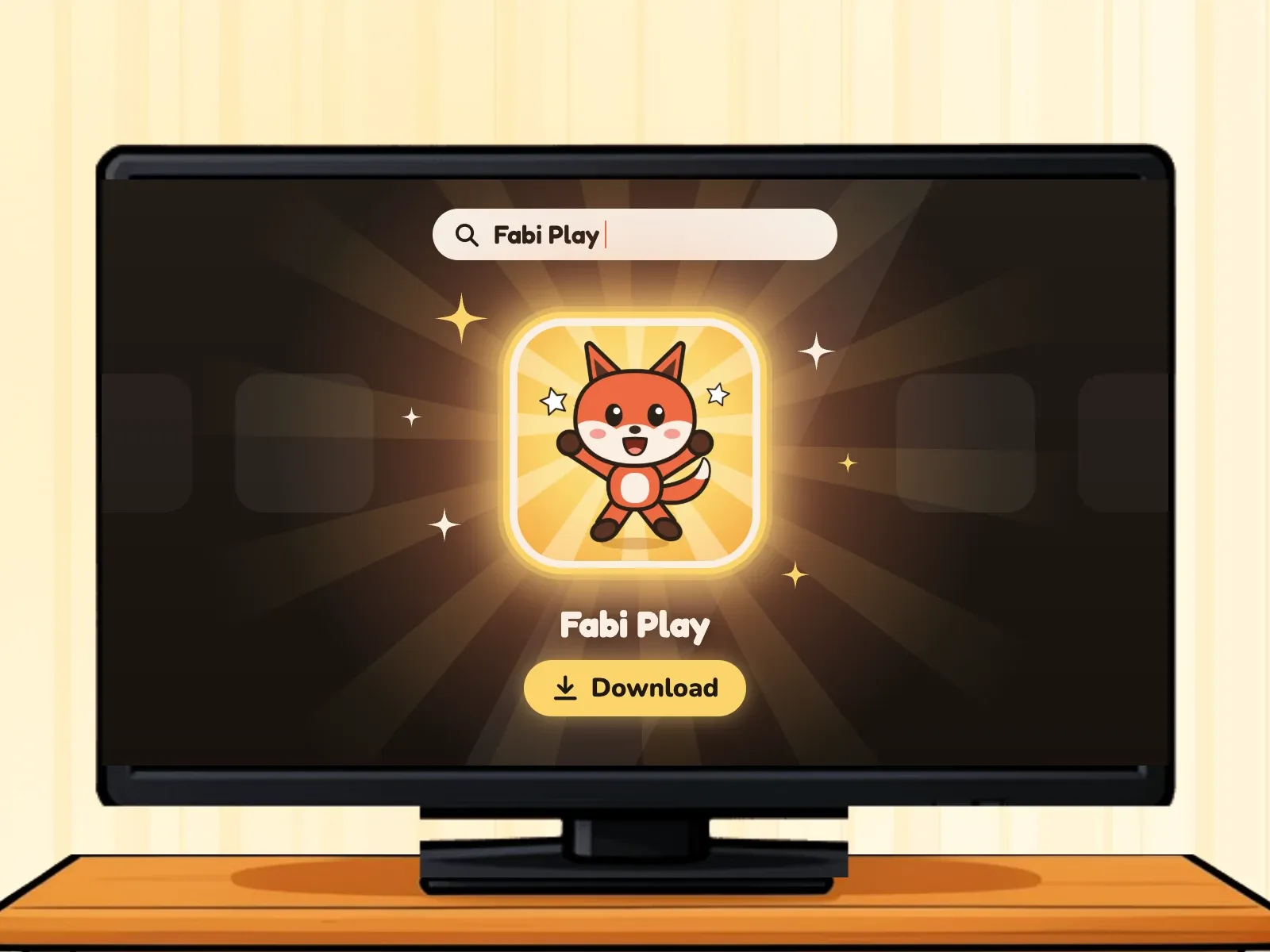
On the TV, open Search (the magnifying glass) and type “Fabi Play”. Or just say: “Alexa, find Fabi Play”. Choose the app, download it and open it. A QR code and a short code appear.
For grown-ups: Next time you’ll find Fabi Play with your apps. The app is free. Get it on Amazon (opens in a new tab) · All the TV apps
In the browser
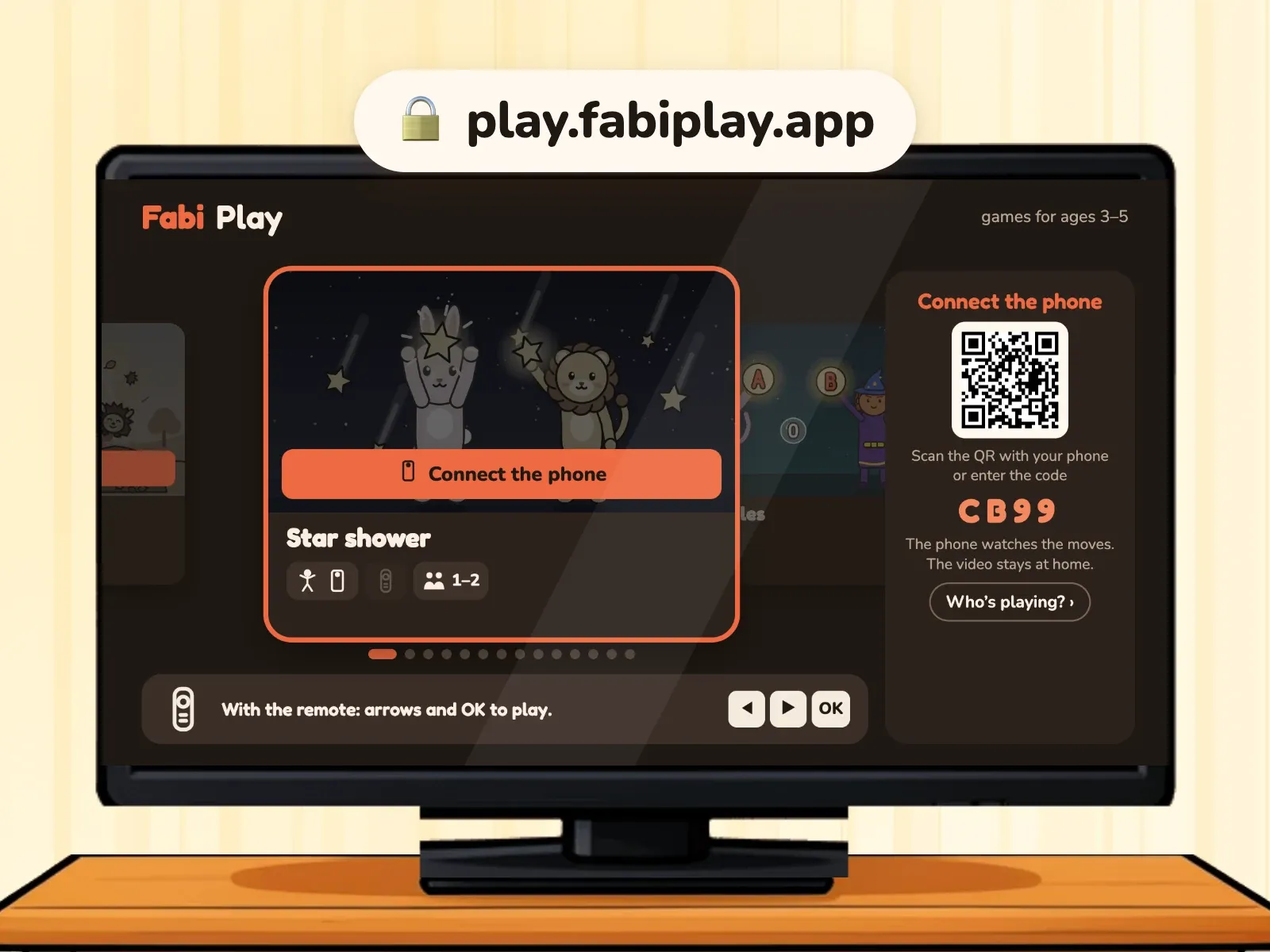
Open the web browser on the TV (or on the computer) and go to play.fabiplay.app. A QR code and a short code appear.
For grown-ups: Leave the page open: it is where you play.
-
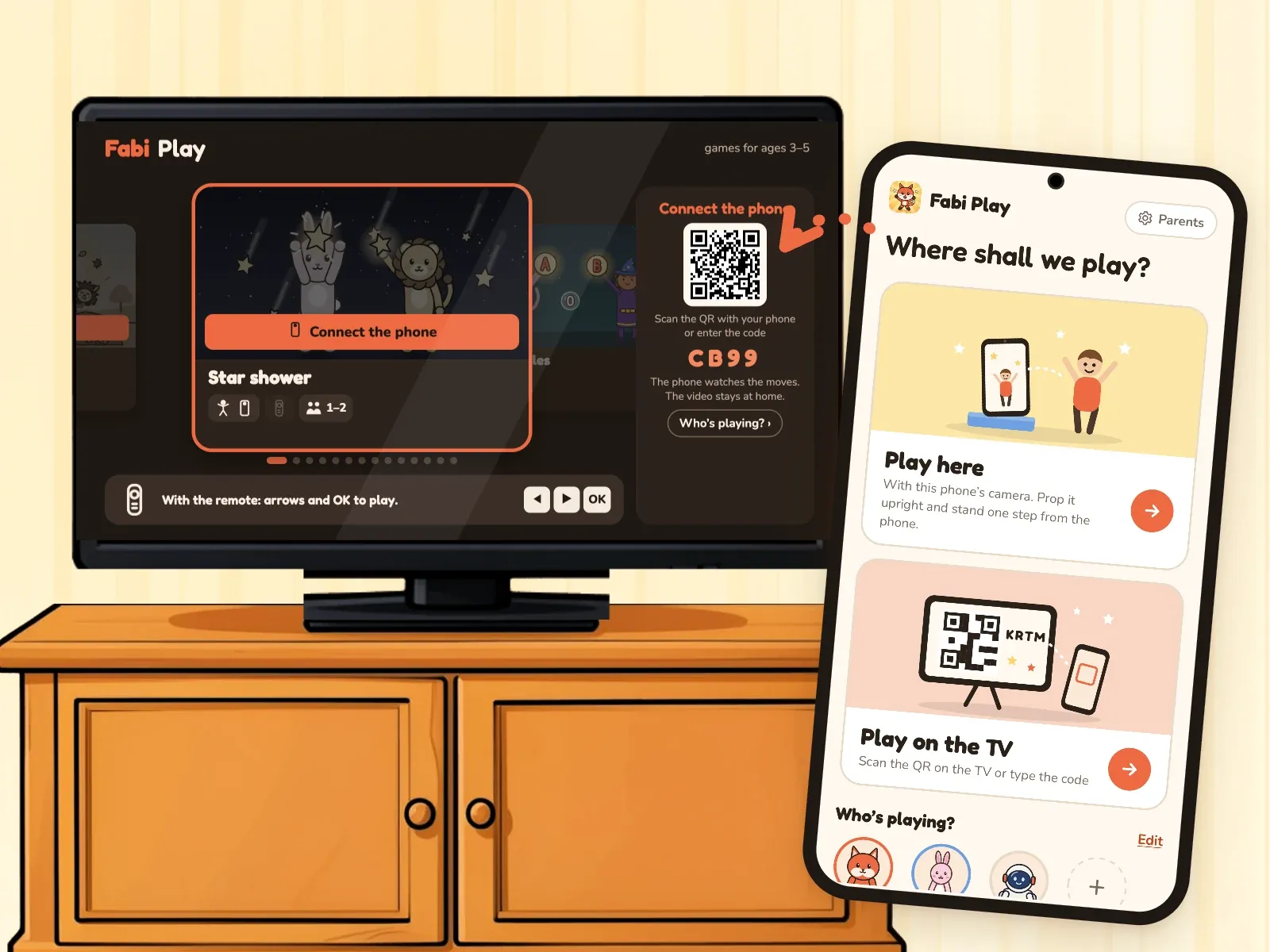
Step 3: Connect the phone
iPhone: open the Fabi Play app, tap “Play on the TV” and scan the QR. Other phones: point the camera at the QR and open the link.
For grown-ups: No QR? In the app, type the code and tap “Connect”.
-
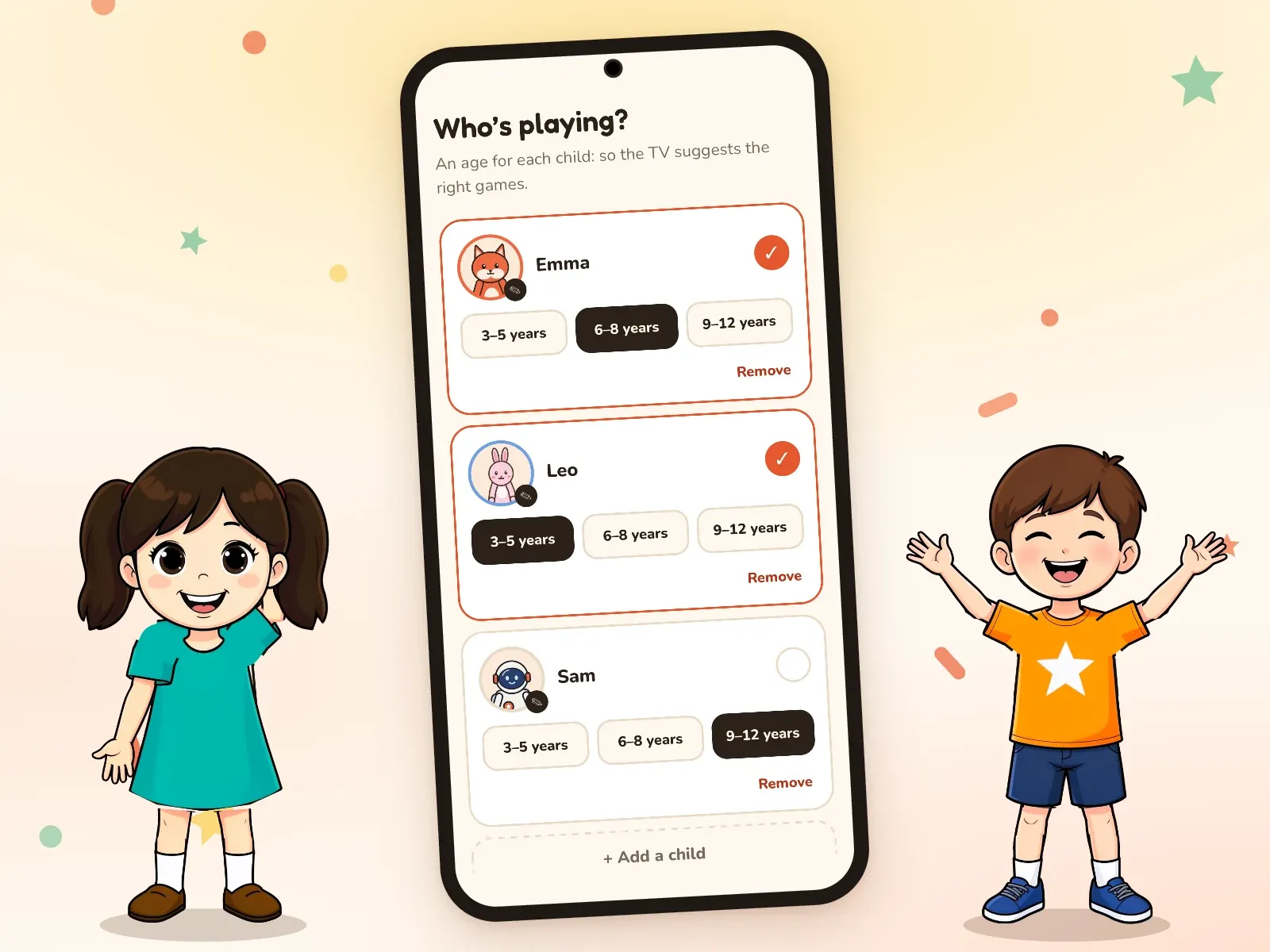
Step 4: Who’s playing?
On the phone, add each child: a name, an age and a character. Tap the face to choose. Up to 4 children!
For grown-ups: Ages are 3–5, 6–8 and 9–12: the TV picks games for the youngest. Then tap “Next”.
-
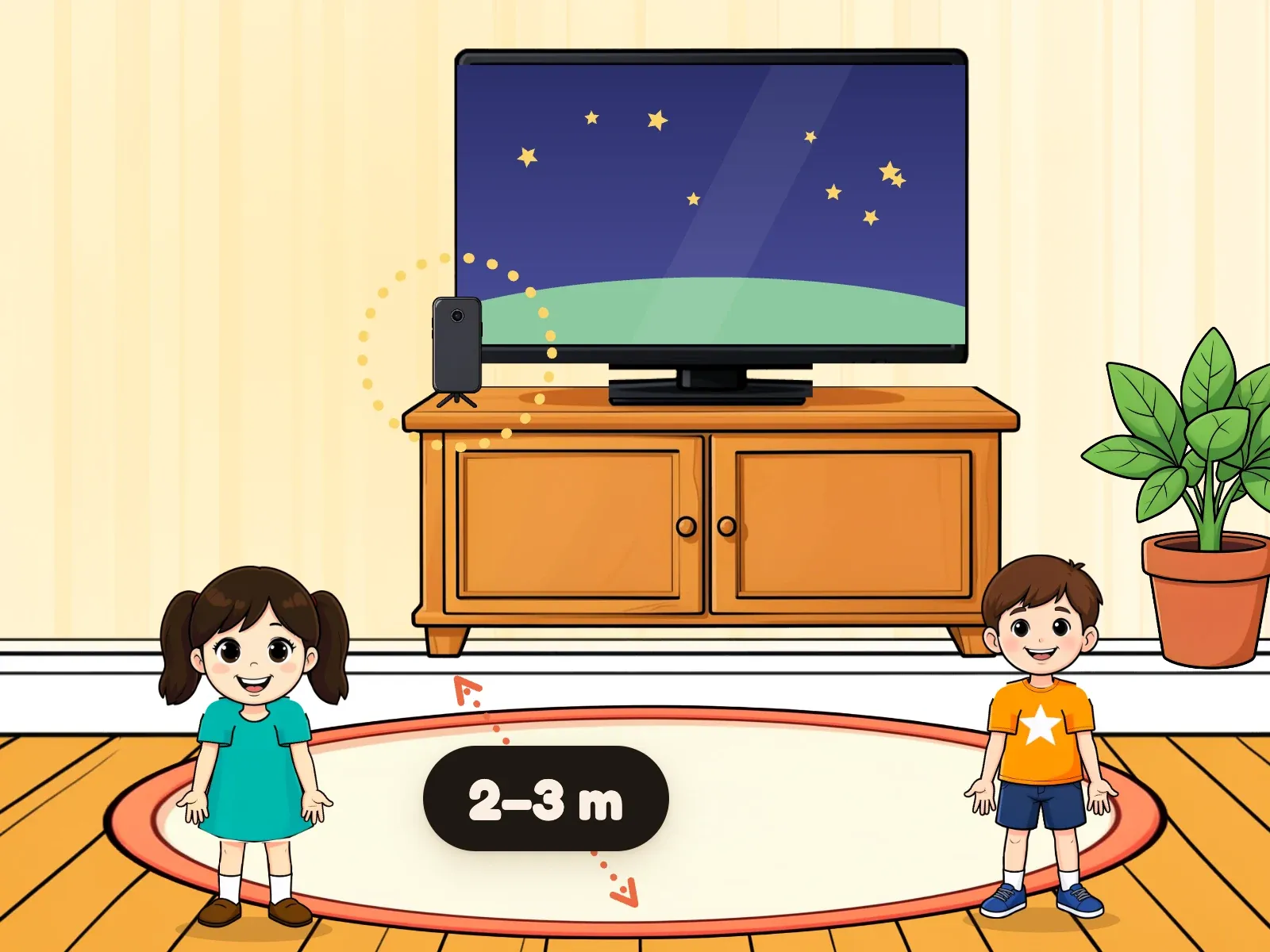
Step 5: Stand the phone up
Put the phone near the TV, standing up, with the back camera looking at the room. Take 3 or 4 big steps back.
For grown-ups: Two or three metres between the phone and the children. A low cabinet at tummy height is perfect. Clear the floor, then tap “Done, now let’s watch the TV”. If the video shows on the TV, turn the phone sideways. Keep it standing up.
-
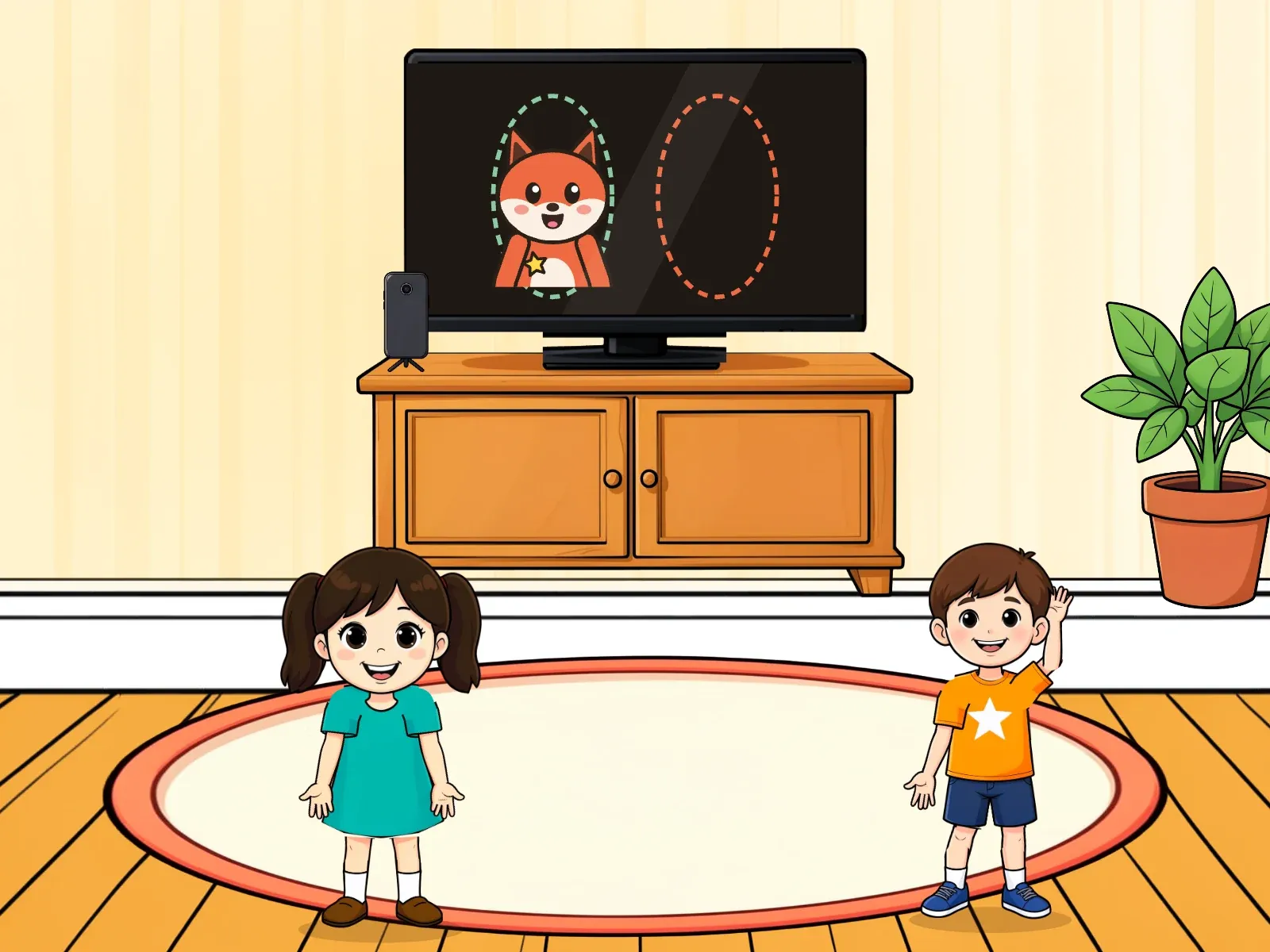
Step 6: Find your circle
The TV shows a circle for each child. Step into yours and stand still until it turns green.
For grown-ups: When the phone connects, the TV says “Get into position”. When everyone is ready, stretch one arm to the right, or press “Continue”.
-
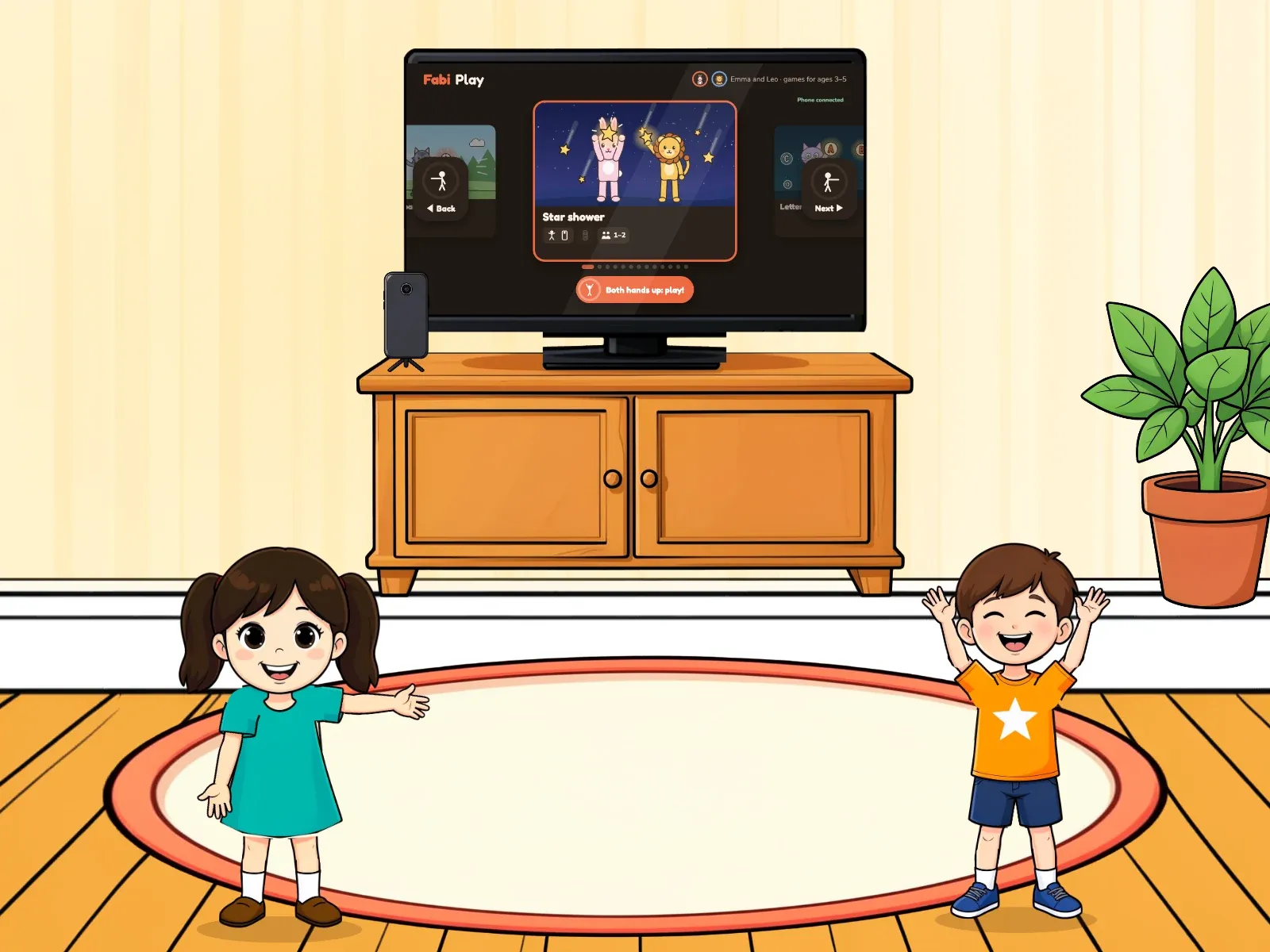
Step 7: Pick a game
Stretch one arm out to the side to see the next game. Raise both hands to play!
For grown-ups: You can also choose on the phone: tap “Play!”.
-
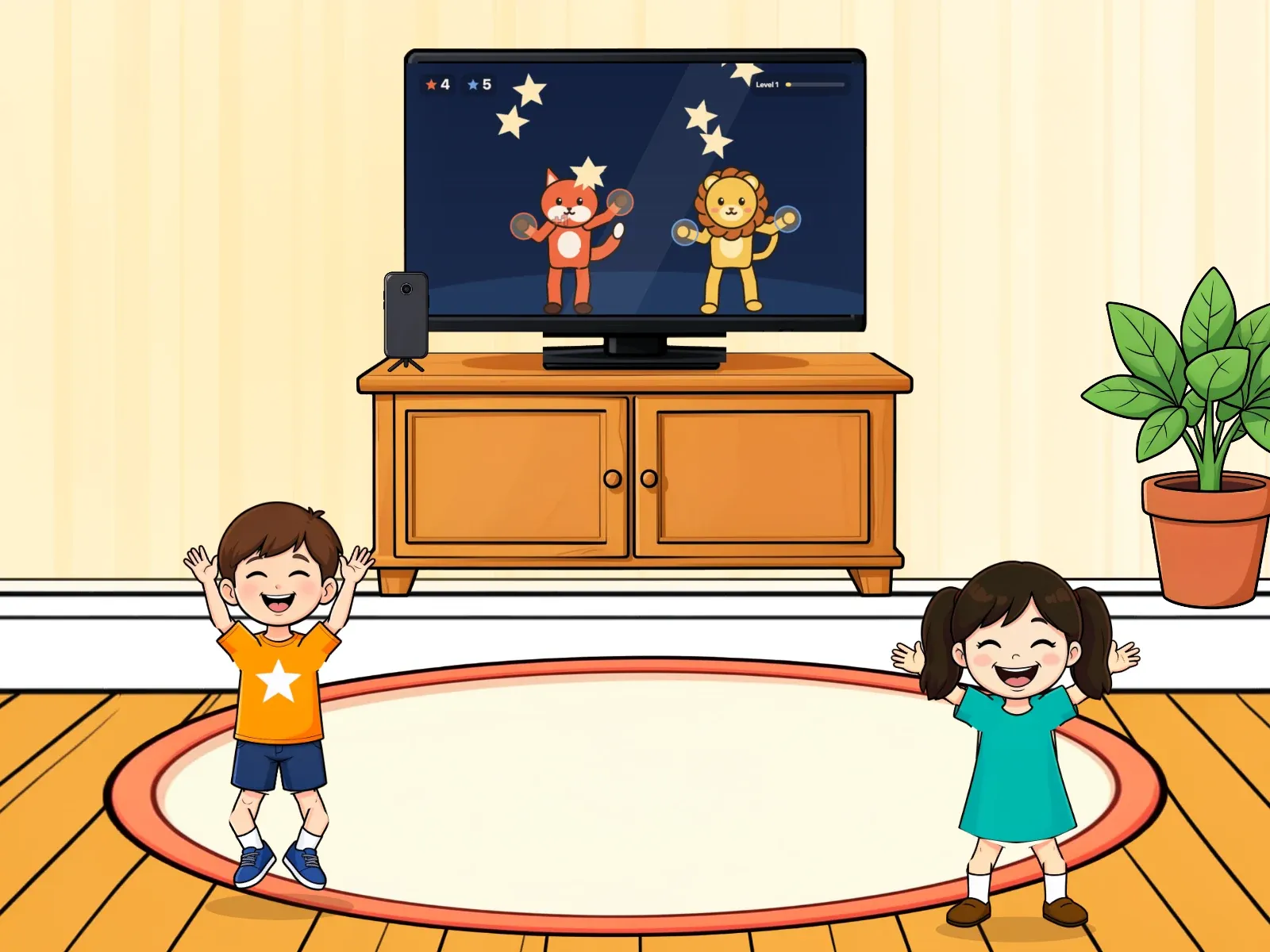
Step 8: Play!
The first time, Fabi shows you how. Then everyone steps into their circle, and off you go: jump, crouch, catch!
-
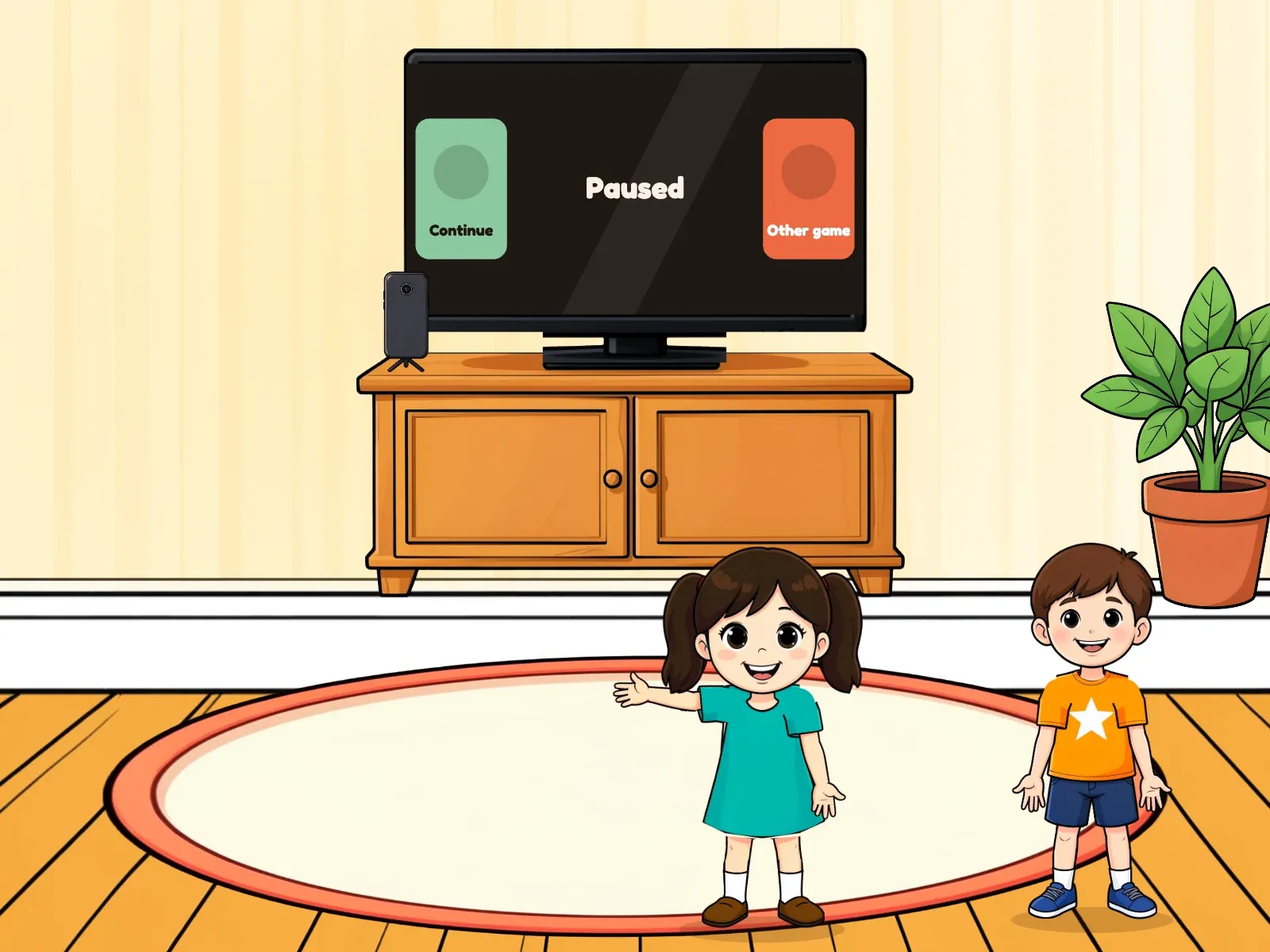
Step 9: Take a break
A grown-up taps “Pause” on the phone. Then stretch your arm towards a button: “Continue” or “Other game”.
For grown-ups: If nobody is in front of the camera for a few seconds, the game pauses by itself.
-
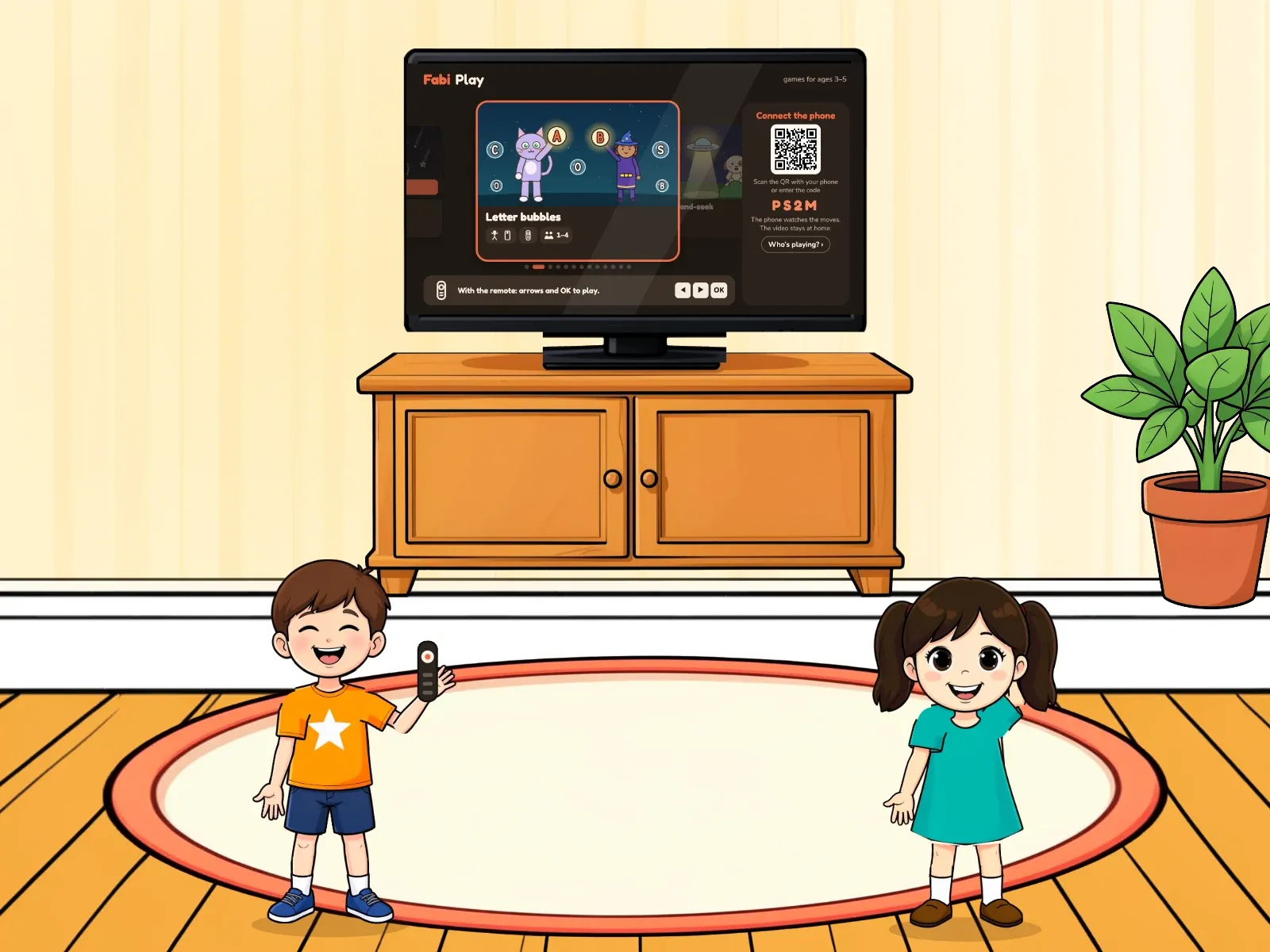
Step 10: No phone? Use the TV remote
Some games work with the TV remote: arrows and OK. In some games you take turns: pass the remote when the TV says so.
For grown-ups: Games that need the phone show “Connect the phone”. In a game: ↑ or OK to jump, ↓ to crouch, ← → to step sideways.
-
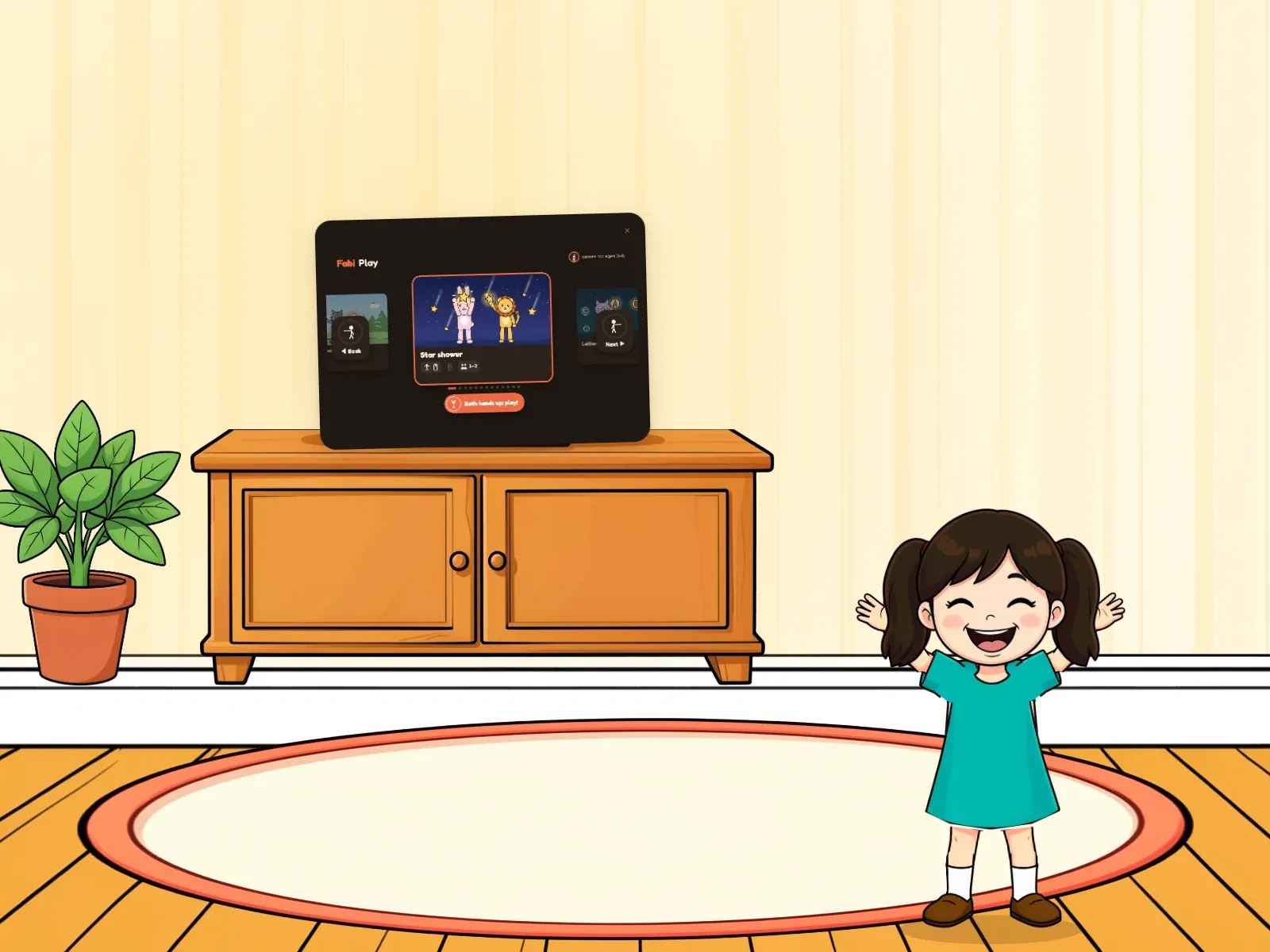
Step 11: No TV? Play here
On an iPad or iPhone, open the app and tap “Play here”. Stand the tablet sideways and take 3 or 4 steps back.
For grown-ups: On a phone, stand it upright and stay one step away.
Something not working?
-
The phone can’t find the TV
Phone and TV must be on the same Wi-Fi: not mobile data, not a guest network. Use the code on the TV right now.
-
The TV can’t see you
Take a step back: the TV wants to see you from head to toe. Turn on a light, and keep the phone still.
-
The phone disconnected
The TV shows the QR and the code again: connect the phone again.
-
A game says “Connect the phone”
That game needs the phone as the camera. Connect it, or pick another game.
-
The camera won’t start
Allow the camera for Fabi Play in the phone’s Settings, or, in the browser, in the site settings.
Still stuck? Have a look at the support page, or write to us.